

My journey into Google Analytics
After setting up my sites (incorrectly) in Google Search Console, when I tried to set up Analytics, I noticed duplicates, submenus, and multiple properties.
Google’s interfaces are not always straightforward, so after some research, I found out how to move them around and how the hierarchy of accounts versus properties works.
Below is a quick guide I generated to assist you with this:
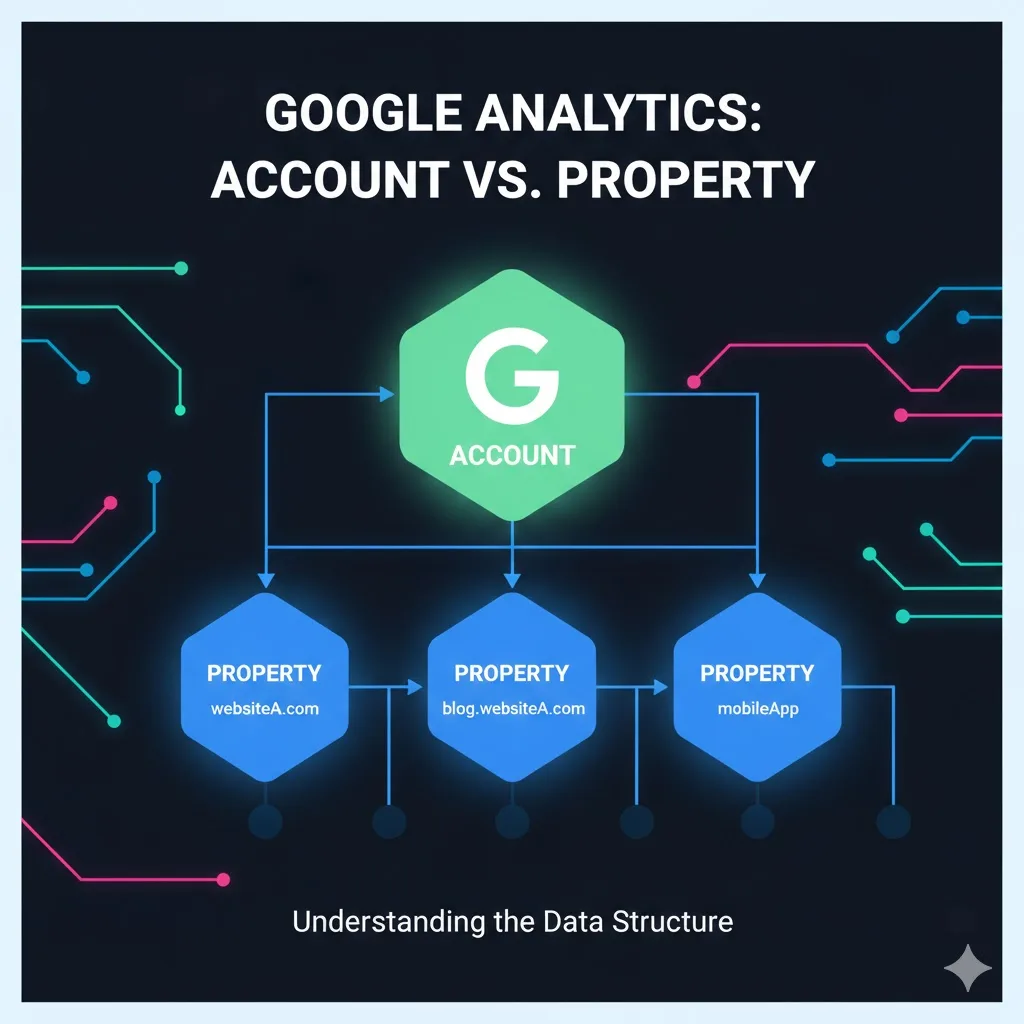
1. The Hierarchy: Account vs. Property
Google Analytics uses a specific hierarchy to help you organize how data is collected and managed:
- Account: This is the highest level of organization. Think of it as the “folder” or “company” level. You can have multiple accounts (e.g., one for personal projects and one for a business).+1
- Property (and Apps): A “Property” exists inside an account. It represents a specific website or mobile app. In your current view, for example, you have a property for www.pikipics.com.
You don’t really need multiple accounts; just one will do. And for properties, just like for Google Search Console, you really need to only monitor the main domain, for example: pikillc.com, as it will monitor any variations of it as well, such as sub.pikillc.com.
Here are the steps to move properties:
- Switch to the Property: Click the Account/Property selector at the top left and select the Save Me Monthly On: account, then click the savememonthly.com property.
- Open Property Details: In the left-hand Admin menu, ensure you are under Property settings > Property details.
- Click Move Property: Click the Move property button at the top right of the details pane.
- Select Destination: In the “Select a destination account” dropdown, choose the account such as pikillc.com (34858593).
- Confirm: Choose whether to keep the existing property permissions or replace them with the destination account’s permissions, then click Start move.
A quick note on permissions: The “Keep existing property permissions” option is currently selected. This is usually the safest bet, as it ensures that anyone who currently has access to this property won’t lose it during the move.